Bloomington web design, hosting, SEO, and AI visibility

812-650-4405 · david@davidmartindesign.com

  • Search Is Changing: How Small Businesses Can Stay Visible in an AI-Driven World

    Search Is Changing: How Small Businesses Can Stay Visible in an AI-Driven World

    You’ve invested in a website. Maybe you’ve done some SEO work over the years. You keep your Google Business Profile updated and ask happy customers for reviews. Things have been working reasonably well.

    But lately, you keep hearing that AI is changing how people find businesses online. And you’re not entirely sure what to make of it, or what (if anything) you should be doing differently.

    Here’s the short version: the changes are real, but they’re not as disruptive as the headlines suggest. Most of what’s worked in recent years still works. There are, however, some new layers worth understanding, and a few practical steps that can help your business stay visible as search continues to evolve.

    I’ve spent the last 20+ years building and maintaining websites for small businesses, nonprofits, and community organizations, primarily here in Bloomington. This post is based on what I’m seeing in my work, what I’m advising clients to do, and what I think matters most for business owners who want practical guidance rather than hype. By the end, you’ll know which SEO fundamentals still matter, what AI search actually changes, and which practical steps are worth your time. You can read more about how I approach this work on my site.

    How We Got Here: A Brief History of SEO

    To understand where search is headed, it helps to know where it’s been.

    What SEO Used to Look Like

    In the early days of search engine optimization, the playbook was pretty straightforward: stuff your pages with keywords, buy as many backlinks as you could, crank out blog posts on a rigid schedule, and hope Google’s algorithm rewarded the effort. For a while, it worked. Search engines weren’t sophisticated enough to tell the difference between genuinely useful content and content designed to game the system.

    Many small businesses either ignored SEO entirely during this era or paid someone to do these things without fully understanding what they were getting. Neither approach was ideal.

    How Google Responded

    Over the past decade-plus, Google released a series of major algorithm updates, each pushing in the same direction. Panda penalized thin, low-quality content. Penguin targeted manipulative link-building. BERT improved Google’s ability to understand natural language. The Helpful Content Update rewarded pages that were genuinely written for people rather than for search engines.

    The through-line across all of these changes is consistent: Google got better at telling the difference between a business that’s trying to be helpful and one that’s trying to look helpful. If you’ve been doing honest work and communicating it clearly online, you’ve been on the right side of these changes all along. Understanding the fundamentals of optimizing your website for search engines is still a good starting point.

    The Local Layer

    The rise of mobile search and “near me” queries changed the game for local businesses in particular. Suddenly, Google Business Profile became a primary way people found and evaluated local businesses. Reviews became a ranking signal. Consistent local business listings across directories started carrying real weight.

    For many small business owners, this was the first time SEO felt directly relevant to their day-to-day operations. And it introduced something that still matters: the way you manage and respond to reviews is visible to both customers and search engines.

    SEO has always been about serving people well. The difference now is that search engines have gotten much better at measuring whether you actually are.

    Where SEO Stands Right Now

    Before we talk about what’s changing, it’s worth taking stock of what’s working today. If you’re a small business owner who wants to make sure your online presence is solid, here’s the current landscape.

    What’s Working

    The fundamentals of a strong web presence haven’t changed dramatically. A well-built, fast, mobile-friendly website with clear navigation is still the foundation. Content that answers the real questions your customers are asking still performs well. A complete, accurate Google Business Profile with recent reviews still drives local discovery.

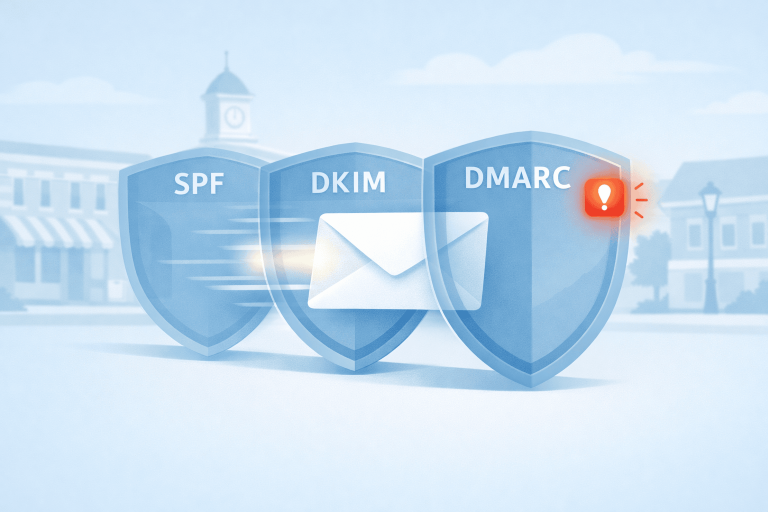
    Technical trust signals matter too, though they often fly under the radar. An active SSL certificate (the padlock icon in your browser) tells visitors and search engines that your site is secure. Proper email authentication through SPF, DKIM, and DMARC helps ensure your emails reach inboxes and protects your domain’s reputation. I worked with a client recently who was getting flagged by Gmail because of a missing DMARC record, and fixing it made an immediate difference.

    A well-maintained WordPress site with current plugins and security measures remains one of the best platforms for small business websites. The investment in a properly built WordPress site pays dividends over time.

    What’s Stopped Working

    Publishing blog posts on a fixed schedule just to “feed the algorithm” doesn’t carry the weight it once did. Targeting specific keyword densities or chasing exact-match phrases is largely outdated. Buying links or submitting to low-quality directories can actually hurt more than it helps. And treating your website as a “set it and forget it” project has never been a great strategy, but the consequences are more visible now.

    Generic content is another casualty. A page that could apply to any business in any city doesn’t signal the kind of expertise and local knowledge that search engines are looking for. Good WordPress SEO today means writing content that reflects your actual business, your actual customers, and your actual community.

    The Credibility Standard Google Uses Now

    Google’s quality guidance emphasizes a framework called E-E-A-T: Experience, Expertise, Authoritativeness, and Trustworthiness. In plain language, Google is asking: does this business have real experience doing what they say they do? Can I verify that?

    For small business owners, this is actually good news. You don’t need to be a national brand to demonstrate expertise. Author bios that show real credentials, case studies from actual client work, community involvement that’s documented online, and reviews from real customers all contribute to your E-E-A-T signals. Most small businesses that do quality work already have the raw material. They just need to surface it on their website.

    If you’re doing honest work and communicating it clearly online, you’re already ahead of most. The next step is making sure both people and technology can find and understand what you offer.

    What AI Is Actually Changing

    Now for the part you’ve been hearing about. AI is genuinely changing how people search for information and how search engines deliver results. But the changes are more practical than dramatic, and understanding them puts you in a much better position than ignoring them.

    People Are Searching Differently

    Tools like ChatGPT, Google Gemini, and Perplexity have become common ways people look for information, recommendations, and answers. Instead of typing “plumber Bloomington Indiana” into Google, someone might ask an AI tool, “Who’s a reliable plumber in Bloomington that does tankless water heater installs?”

    The AI then pulls from websites, reviews, directories, and other public sources to assemble an answer. Sometimes it names specific businesses. Sometimes it summarizes what it finds and provides links.

    What this means for a local business: your online presence is being read and summarized by machines, not just browsed by humans. Fewer people may click through to your site for simple, factual questions. But the ones who do visit are often further along in their decision-making and more likely to take action.

    Google Is Changing Too

    Google now displays AI Overviews for some searches, especially when its systems think a summary can help answer a more complex question. These are AI-generated summaries that attempt to answer the searcher’s question before they click on any individual result. It’s a significant shift in how information is presented.

    Google is also placing more weight on entities, which means recognized businesses, people, and organizations, rather than just keyword matches. First-hand experience and demonstrated expertise carry more influence than they used to. For local businesses, this reinforces what was already true: your reputation, your reviews, and your documented expertise are your strongest assets.

    Making Your Business Readable by AI

    AI tools look for clear, well-organized information. If your website is confusing to a person, it’s going to be confusing to AI as well. Consistent information across your website, your Google Business Profile, and your directory listings helps AI tools trust and cite your business accurately.

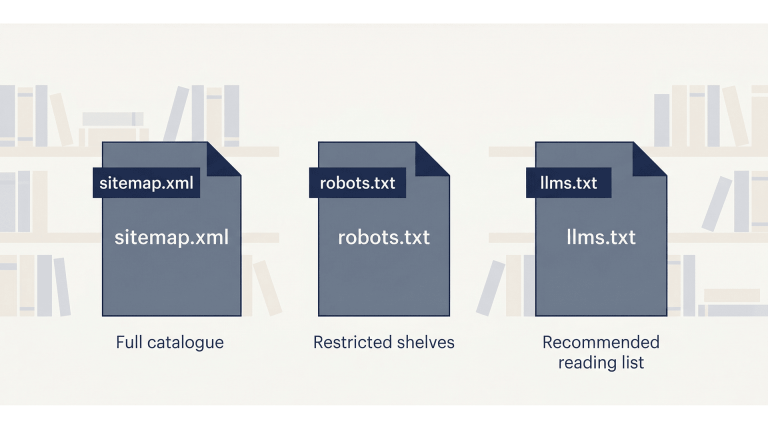
    Structured data, specifically Schema.org markup in JSON-LD format, acts as a labeling system that helps search engines and AI tools categorize your content. Think of it as putting clear labels on a well-organized shelf. It tells machines, “This is a local business,” “This is a service page,” “This is a customer review.” A good SEO plugin like Rank Math handles much of this automatically, but it’s worth understanding what it does and why it matters.

    Open Graph tags help your content display correctly when shared on Facebook and LinkedIn. Twitter Cards serve the same purpose on X. These aren’t new concepts, but they’re increasingly important as more platforms use structured information to decide what to show.

    There’s also an emerging, optional idea called llms.txt that some site owners are experimenting with to make key website information easier for certain AI tools to understand. Google has said it doesn’t use llms.txt for Search or AI Overviews, so I’d treat it as a low-cost supporting step, not a core SEO requirement

    A Word About AI-Generated Content

    AI is a genuinely useful tool for research, drafting, and organizing ideas. I use AI tools in my own work and recommend them to clients for the right purposes.

    But AI is not a replacement for the first-hand experience and local knowledge that makes your business credible. Google has been clear on this: the issue isn’t whether AI was involved in creating content. The issue is whether the final content is helpful, accurate, and reflects real expertise.

    For small business owners, the practical advice is simple. Use AI to work more efficiently, but make sure what you publish reflects your actual knowledge and experience. A blog post about your industry written by someone who does the work every day is worth far more than a polished article generated entirely by a machine.

    If you’re curious about where your site stands today, tools like Microsoft Clarity and these free web analysis tools can give you a useful baseline.

    AI isn’t replacing search. It’s adding new ways for people to find you, and new reasons to make sure your online presence is clear, consistent, and trustworthy.

    What You Can Do About It

    If you’ve read this far, you might be wondering where to start. The good news is that the most impactful steps are also the most straightforward. You don’t need a marketing department or a massive budget. You need clarity, consistency, and a willingness to document the expertise you already have.

    Shore Up Your Foundation

    Start here. Confirm your website loads quickly, works well on mobile, and has clear navigation. Make sure your Google Business Profile is complete, accurate, and shows recent activity. Check that your business name, address, and phone number are consistent across your website, your GBP listing, and any directories where you’re listed. Verify that your SSL certificate is active and that your site displays the padlock icon in the browser bar.

    These aren’t glamorous tasks, but they’re the foundation everything else is built on. If your foundation has gaps, the more advanced strategies won’t deliver the results they should.

    Show Your Work

    This is where small businesses have a real advantage. You have stories that no one else can tell.

    Document your expertise through case studies, project stories, or client spotlights. Write about what you actually know from doing the work, not generic advice that anyone could post. I’ve been fortunate to work with some of my clients for many years. Eight years with Bloomington Window Tint. Eighteen years keeping a bookstore’s website online. Those long-term relationships tell a story about reliability and trust that no amount of keyword optimization can replicate.

    If you’ve been in business for years, that longevity is a trust signal. Make it visible on your site. Feature real team members with real bios. Share the kind of work you do in enough detail that both a potential customer and an AI tool can understand exactly what you offer. Case studies like Shaymaker Counseling’s website success and the Indiana Greenscape Solutions story are the kind of content that demonstrates real expertise.

    Build Trust Signals Deliberately

    Ask satisfied clients for Google reviews, and respond to every review you receive, positive or negative. This is one of the simplest and most effective things you can do for both traditional SEO and AI visibility.

    Stay active in your community in ways that generate online documentation. Chamber events, sponsorships, local partnerships, teaching, volunteering. These activities build the kind of real-world authority that search engines and AI tools are learning to recognize and value. Chamber membership and community involvement aren’t just good for business. They’re good for visibility.

    Keep your technical trust signals current too. SSL certificates, email authentication, accessibility standards, and regular security updates are all part of the picture. Being remembered, respected, and referred has always been the goal. The digital version of that just requires a bit more intentional maintenance.

    Start Thinking About AI Visibility

    This doesn’t require a major investment right now. Start with awareness. Ask yourself: if an AI tool tried to summarize what my business does based on my website, would it get it right? Is the information clear and specific, or vague and generic?

    Consider adding structured data if your site doesn’t already have it. Your web developer or your SEO plugin can likely handle this. Look into llms.txt as a simple, low-cost step toward making your business more visible to AI tools.

    If this feels like a lot, it doesn’t have to be tackled all at once. A good web partner can handle the technical pieces while you focus on running your business. Services like local SEO and local search marketing exist specifically to help business owners stay visible without adding another full-time job to their plate.

    You don’t need to outspend your competitors. You need to out-clarify them.

    Quick Self-Check: Where Does Your Business Stand?

    Take a minute to consider these questions. You don’t need to answer yes to all of them, but each “no” points to a practical next step.

    • Does your website load in under three seconds on a mobile phone?
    • Is your Google Business Profile complete, accurate, and showing recent reviews?
    • Is your business name, address, and phone number consistent across your website, GBP, and directory listings?
    • Does your website include content that reflects your actual expertise and experience?
    • Could an AI tool accurately summarize what your business does based solely on your website?
    • Does your site use structured data (Schema.org markup) for your business type, services, and reviews?

    Three Things to Remember

    SEO has shifted from keywords to trust. The tactics that used to work are being replaced by something more straightforward: be genuinely helpful, be clearly organized, and be honest about what you do. The bar for quality has gone up, but the underlying principle hasn’t changed.

    AI is creating new pathways to visibility. Businesses that have clear, consistent, well-structured online presences will benefit from these changes, not be harmed by them. The goal isn’t to optimize for AI. It’s to communicate so clearly that any system, human or machine, can understand what you offer.

    Small businesses can compete by being strategic. You don’t need a big budget or a marketing department. You need clarity, consistency, and content that reflects real expertise. The businesses that will thrive are the ones that are well-built, well-written, and well-aligned with what their customers actually need.

    Frequently Asked Questions

    What is E-E-A-T and why does it matter for small businesses?

    E-E-A-T stands for Experience, Expertise, Authoritativeness, and Trustworthiness. It’s the framework Google uses to evaluate whether content comes from a credible source. For small businesses, this means your website should reflect your real-world experience, feature author bios with actual credentials, include case studies or client stories, and show evidence of community involvement. The good news is that most small businesses already have this material. It just needs to be visible on your site.

    How is AI changing the way people search for local businesses?

    Instead of typing short keyword phrases into Google, more people are asking AI tools like ChatGPT, Google Gemini, and Perplexity full questions and getting summarized answers. These tools pull from websites, reviews, and directory listings to assemble their responses. For local businesses, this means your online presence needs to be clear and consistent enough that AI tools can accurately represent what you do. Google’s own AI Overviews now appear at the top of many search results as well, making this shift even more relevant.

    What is llms.txt and how can it help my business?

    llms.txt is an emerging standard that helps AI tools understand what your business is about. It’s a simple text file added to your website that provides AI-friendly context about your services, expertise, and offerings. Think of it as a structured introduction to your business, written specifically for AI systems. It’s optional and low-cost to implement, but it’s one concrete step toward improving your visibility in AI-powered search results. Learn more about llms.txt for small business.

    What is structured data and does my small business website need it?

    Structured data is code added to your website that helps search engines and AI tools categorize your content. The most common format is Schema.org markup in JSON-LD. It labels your pages so machines understand that this is a local business, this is a service page, or this is a customer review. If you’re using an SEO plugin like Rank Math on WordPress, much of this is handled automatically. For small businesses, the most useful types include LocalBusiness, Service, FAQ, and Review schema.

    Do I need to completely change my SEO strategy because of AI?

    No. Most of what works today still works. A fast, well-built website, a complete Google Business Profile, consistent business information across directories, and helpful content that reflects your actual expertise are all still important. AI adds a new layer of visibility, not a replacement for the fundamentals. The most practical steps are making sure your site is clear and well-organized, maintaining your structured data, and considering tools like llms.txt. If your foundation is solid, adapting to AI-driven search is a matter of refinement, not starting over.


    If you’re not sure where your website stands with these changes, I’m happy to take a look. No pitch, just an honest assessment of what’s working, what could be improved, and what to prioritize next. You can schedule a conversation here, or explore the full range of services I offer to see what fits. If you’d like to understand how your site is performing today, my analytics services are a good place to start.

The Latest News

  • Your Google Business Profile: A Practical Guide for Local Businesses

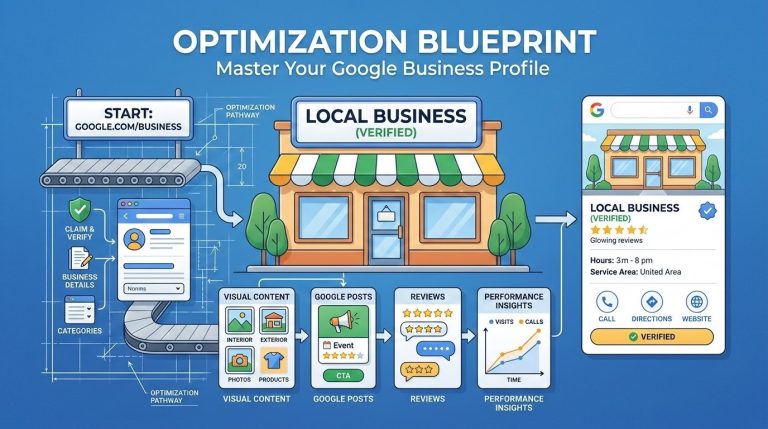
    If someone searches for your type of business in Bloomington right now, the first thing they’ll likely see isn’t your website. It’s your Google Business Profile: the panel that appears in Google Maps and in the results sidebar with your name, hours, photos, reviews, and a button to call or get directions. That listing is often making a first impression before anyone ever clicks through to your site. And yet, for many local businesses, it’s either incomplete, out of date,…

    Your Google Business Profile: A Practical Guide for Local Businesses
  • How Much Does a WordPress Website Actually Cost?

    If you’ve ever searched for website pricing online, you already know the frustration. Most answers are some version of “it depends” — followed by a range so wide it tells you almost nothing. The truth is, cost does vary. But the reasons why are pretty straightforward, and once you understand them, you can walk into any conversation with a web designer knowing exactly what to expect. This post breaks down real pricing for WordPress websites — with context specific to…

    How Much Does a WordPress Website Actually Cost?
  • What Is an llms.txt File – and Does Your Small Business Website Need One?

    AI search tools like ChatGPT, Perplexity, and Google’s AI Overviews are changing how people find local businesses. A new file called llms.txt gives you a simple, low-effort way to help those tools understand your website — and describe your business accurately. This post explains what it is, why it matters, and gives you a free fill-in template to get started. If you want to skip ahead to the template, jump to the bottom. The Short Answer An llms.txt file is…

    What Is an llms.txt File – and Does Your Small Business Website Need One?
  • When SPF, DKIM, and DMARC Don’t Align: Fixing a Gmail Warning for the Bloomington Chamber

    Why Gmail Sometimes Shows a Red Warning Banner A Real-World Email Authentication Fix for the Bloomington Chamber Email feels simple when it works. You write a message, hit send, and it arrives in someone’s inbox a moment later. But behind the scenes, email relies on a system of verification checks. These checks protect people from phishing, spam, and impersonation. When everything is configured correctly, recipients never notice them. When something is misconfigured, even a legitimate message can look suspicious. That’s…

    When SPF, DKIM, and DMARC Don’t Align: Fixing a Gmail Warning for the Bloomington Chamber
  • Eight Years, One Shop, and a Website That Grew With the Business

    Case Study  |  David Martin Design  |  Client Work How Bloomington Window Tint went from a placeholder page and a quiet phone to a professionally managed digital presence built on trust and consistency. At a Glance Client: Andrew Felt, Bloomington Window Tint LLCIndustry: Automotive and commercial window tinting, paint protection film, solar shadesLocation: Bloomington, IndianaRelationship: 2017 to present (8+ years)Services: Website design and development, Google Business Profile management, Google review responses, Google Ads guidance, Google Analytics, WordPress maintenance, LLumar product…

    Eight Years, One Shop, and a Website That Grew With the Business
  • Eighteen Years of Keeping a Bookstore Online

    A long-term partnership with Academic Scholarly Books in Bloomington, Indiana Some client relationships are defined by a single project. Others are defined by time. My work with Joe Grant of Academic Scholarly Books falls squarely in the second category. We’ve been working together since 2008, through platform changes, hosting migrations, Google’s many evolutions, and the full arc of what it means to have a small business presence on the web. Joe runs a used and academic book buying operation in…

    Eighteen Years of Keeping a Bookstore Online
  • Ava’s Waste Removal: 7 Years of Website Support for a Growing Local Business

    Project Overview Ava’s Waste Removal has been a client since February 2019 — one of our longest-running partnerships. What started as a custom website build for a small trash hauler in Ellettsville has turned into seven years of steady, practical support: newsletters, holiday announcements, recycling schedule updates, award graphics, form troubleshooting, and most recently, a refreshed reviews and awards page. Steve Groh and his team don’t need a flashy agency. They need someone who picks up the phone, understands how…

    Ava’s Waste Removal: 7 Years of Website Support for a Growing Local Business
  • My CVS Adventure

    Jeffrey Zeldman wrote a relatable post today about waiting at CVS while his prescription got sorted out. It reminded me of my own recent CVS experience, which had a few more moving parts. I placed a free 8×10 photo order and somehow routed the pickup to a store in Haleiwa, Hawaii. I have friends there and we have visited that store before, so I suppose it made a certain kind of sense to my browser history, but not to my…

    My CVS Adventure
  • A Simple Mac Tool I Use to Resize Images Before Uploading to WordPress

    If you’ve ever uploaded a photo straight from your phone into WordPress, you’re not alone. That 6MB image looks harmless. WordPress even creates multiple sizes automatically. Everything seems fine. But here’s what’s actually happening behind the scenes: That full-size original file still lives on your server. And if it’s oversized, every upload adds weight to your hosting account, your backups, and your long-term site performance. For small businesses, nonprofits, and community organizations trying to build sustainable digital spaces, that adds…

    A Simple Mac Tool I Use to Resize Images Before Uploading to WordPress
  • Windows PowerToys Is the Productivity Upgrade Windows Should Have Shipped With

    If you use Windows every day, you’ve probably felt it: the OS is powerful, but a handful of small things slow you down more than they should. That’s where Microsoft PowerToys comes in. PowerToys is a free, Microsoft-supported utility suite that adds practical, no-nonsense features to Windows. These aren’t gimmicks—they’re tools that shave seconds and friction off everyday tasks. Over time, that adds up. If you work in design, development, strategy, or any role that lives inside a computer all…

    Windows PowerToys Is the Productivity Upgrade Windows Should Have Shipped With
  • Economy Fireplace: Website Redesign, Google Business Updates & Workspace Setup

    Project Overview Economy Fireplace serves homeowners across the Bloomington area with fireplaces, stoves, and accessories. Ahead of the busy season, they needed a modern website, a clearer path to request quotes, and better alignment across Google tools. We delivered a clean WordPress build, a simple content workflow, and brand updates that make day-to-day operations simpler. Goals What We Delivered Website Redesign (WordPress + Gutenberg) Google Workspace Ecosystem & Email Analytics & Hardening Branding & Collateral (Extras) We went beyond the…

    Economy Fireplace: Website Redesign, Google Business Updates & Workspace Setup
  • Why I’m Proud to Be a Chamber Member (Since Way Back When)

    I’ve officially been a Chamber member through David Martin Design since at least 2021, but my ties go back even further. I still have emails from 2009, when I was part of the Young Professionals group, soaking up all the networking and learning opportunities I could. Fast forward to today, and I’m still grateful for the connections, visibility, and resources the Chamber provides. From local advocacy to business referrals, community partnerships, and even media features like the recent spotlight on…

    Why I’m Proud to Be a Chamber Member (Since Way Back When)
  • Client Spotlight: Making Tech Simple for Ellen & Mark

    At David Martin Design, one of our greatest rewards is seeing the confidence and peace of mind that comes when technology becomes approachable again. Recently, I had the privilege of working with Ellen and Mark—two thoughtful and gracious clients who wanted to bring their home computing setup up to speed. They reached out looking for help with a Windows desktop system that had grown outdated and increasingly frustrating to use. After an in-home visit, we walked through a full update…

    Client Spotlight: Making Tech Simple for Ellen & Mark
  • From Classroom to Client: How Shawn Haymaker Counseling Earned a Perfect 100 Website Score 🌟

    Back in June 2024, I had the honor of presenting a digital marketing workshop for the Ivy Tech Entrepreneurship Program led by Steve Thrash. I spoke with a cohort of small business owners, creatives, and students working through the final course in their Entrepreneurship Certificate. That Zoom call planted a seed. One of the students, Shawn Haymaker, reached out afterward with an idea: to rework his private practice website and elevate the way he serves the Indianapolis community through art…

    From Classroom to Client: How Shawn Haymaker Counseling Earned a Perfect 100 Website Score 🌟
  • How I’m Using AI to Build Better Systems for Business and Life

    At David Martin Design, I’ve always believed the best solutions aren’t just creative — they’re structured, strategic, and built to work in real life. Today, Artificial Intelligence (AI) has become one of the most powerful tools I use to deliver on that vision — both for my business and personal workflows. But here’s the key: AI is not just about speed — it’s about building smarter systems.When you pair human strategy with AI efficiency, you create solutions that are sharper,…

    How I’m Using AI to Build Better Systems for Business and Life
  • Behind the 📷 Lens: Capturing Trashion Refashion 2025 for The B-Square Bulletin

    Last Sunday, I had the pleasure of photographing one of Bloomington’s most creative and community-driven events—Trashion Refashion 2025—on assignment for The B-Square Bulletin. Held at the historic Buskirk-Chumley Theater, Trashion Refashion is an annual runway show where models strut in outfits made from repurposed or recycled materials. Organized by Discardia, a project of the Center for Sustainable Living, the event raises both awareness and funds to support sustainability initiatives in Bloomington and beyond. 📸 A Showcase of Creativity, Community, and…

    Behind the 📷 Lens: Capturing Trashion Refashion 2025 for The B-Square Bulletin
  • From Roots to Results: The Story of Indiana Greenscape Solutions

    🌱 The Seed of an Idea The story of Indiana Greenscape Solutions begins with Kelly and Beth Fort—partners in both family and business—who, along with their four daughters, Rayne, Autumn, Bree, and Eden, had a vision. As lifelong plant science enthusiasts with deep agricultural roots, they wanted to bring high-quality, personalized lawn care and landscaping services to Bloomington, Indiana. With a strong commitment to family values and customer-focused care, they set out to cultivate a business that would serve their…

    From Roots to Results: The Story of Indiana Greenscape Solutions
  • Welcoming Raymond Labban to the David Martin Design Team

    We are thrilled to officially welcome Raymond Labban to the David Martin Design team as a part-time Digital Marketing & SEO Specialist! Raymond brings a fresh perspective and a strong passion for helping businesses thrive online. His skills and dedication are already making an impact, and we’re excited to highlight how he’ll support our growing portfolio of clients. About Raymond Raymond Labban is a talented professional with a knack for improving digital visibility. His role at David Martin Design involves:…

  • Transferring Your Website to a New Web Designer: A Step-by-Step Guide

    Switching to a new web designer can be a significant step in ensuring your website remains up-to-date, user-friendly, and aligned with your evolving business goals. However, the process of transferring a website is more complex than simply handing over a login. It involves careful coordination, clear communication, and understanding what to expect throughout the process. This guide will walk you through the essential steps and key considerations when transitioning your website to a new web designer. Step 1: Clarify the…

    Transferring Your Website to a New Web Designer: A Step-by-Step Guide
  • WordCamp US 2024: A Celebration of Community, Collaboration, and Creativity in Portland

    There’s something magical about visiting a new city for an event like WordCamp US—the excitement of a vibrant WordPress community coming together combined with the chance to explore the local flavor of the host city. This year’s WordCamp US took place in Portland, Oregon, a city known for its creative energy, lush green landscapes, and incredible coffee (which, let’s be honest, was very much needed!). From the moment I arrived, I could feel the buzz of both the city and…

    WordCamp US 2024: A Celebration of Community, Collaboration, and Creativity in Portland