Bloomington web design, hosting, SEO, and AI visibility

812-650-4405 · david@davidmartindesign.com

Tag: Client Communication

  • How I’m Using AI to Build Better Systems for Business and Life

    How I’m Using AI to Build Better Systems for Business and Life

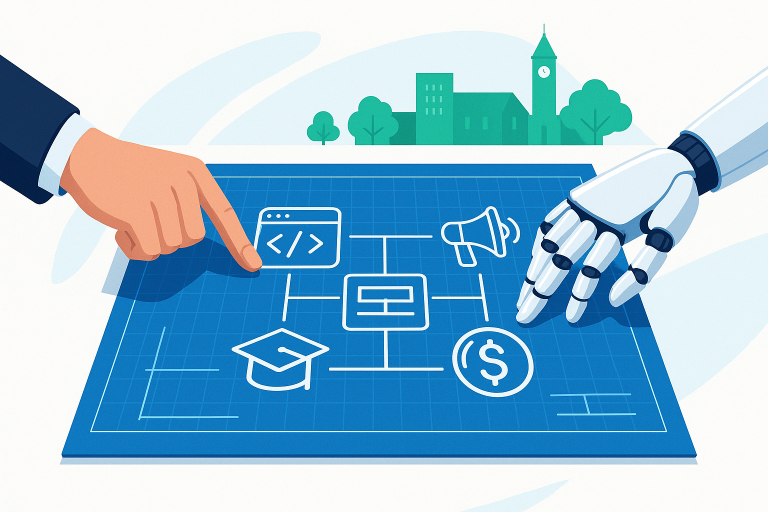
    At David Martin Design, I have always believed the best solutions are not just creative: they are structured, strategic, and built to work in real life. Today, Artificial Intelligence (AI) has become one of the most powerful tools I use to deliver on that vision (both for my business and personal workflows). But here is the key: AI is not just about speed; it is about building smarter systems. When you pair human strategy with AI efficiency, you create solutions that are sharper, faster, and more sustainable.

    How I Use AI in My Business

    Client Communications and Project Management

    When working with clients, whether it is a web design project, SEO consulting, or a marketing campaign, clear communication is everything. I use AI tools like ChatGPT to:

    • Draft client emails faster
    • Refine project scopes and proposals
    • Structure timelines and task lists for complex projects

    This ensures that every message is clear, professional, and moves projects forward efficiently without losing the personal touch.

    Prompt Examples You Can Use:

    • “Draft a friendly but professional email to a client requesting final website approval before launch.”
    • “Summarize a kickoff meeting into a clear action plan email with assigned tasks.”

    Content Creation and Optimization

    AI accelerates the heavy lifting involved in blog posts, service pages, and social media content. Instead of staring at a blank screen, I can:

    • Quickly generate first drafts
    • Refine ideas into structured outlines
    • Brainstorm multiple creative directions for marketing campaigns

    Real Example:
    When I updated my article about Custom GPTs, AI helped me streamline the drafting process while maintaining my brand voice.
    Read my full guide on Custom GPTs

    Prompt Examples for Content Creation:

    • “Create a blog outline on how small businesses can use SEO to grow their local presence.”
    • “Brainstorm 5 blog post ideas for a small business offering sustainable landscaping services.”

    Business Systems and Framework Building

    One of the biggest shifts in my work is how I use AI to formalize systems that used to live only in my head, such as:

    • Website design launch checklists
    • SEO audit templates
    • Client onboarding flows
    • Coaching frameworks for pickleball and business training

    By documenting and refining these systems with AI help, I can deliver more consistent, scalable results.

    Prompt Examples for Building Systems:

    • “Design a client onboarding checklist for a freelance WordPress developer.”
    • “Create a website launch checklist that includes SEO basics, security checks, and mobile optimization.”

    How I Use AI in My Personal Life

    Financial Planning and Decision-Making

    AI supports me in thinking critically through major financial decisions, such as:

    • Choosing the best credit card repayment strategies
    • Managing home equity options
    • Forecasting cash flow for long-term planning

    Using AI for structured scenarios helps me make better-informed decisions quickly.

    Prompt Examples for Financial Planning:

    • “Organize a weekly financial review checklist for a freelancer managing multiple client payments.”
    • “Create a debt repayment prioritization plan based on interest rates and balances.”

    Education and Teaching

    As a pickleball coach and adjunct faculty member at Indiana University, I use AI to:

    • Design lesson plans for different skill levels
    • Create drills focusing on specific technical skills like footwork and paddle control
    • Organize coaching materials for better student progression

    Prompt Examples for Education:

    • “Create a beginner pickleball lesson plan focused on footwork and paddle grip basics.”
    • “Design a player progression chart for beginner to intermediate pickleball skills.”

    Daily Productivity and Life Planning

    Beyond business and education, AI helps streamline everyday life too:

    • Troubleshooting tech, like fixing an iPad photo booth setup
    • Planning travel days
    • Creating structured grocery and shopping lists for family meals

    It is like having a structured brainstorming partner available whenever I need it.

    Prompt Examples for Personal Productivity:

    • “Create a grocery shopping checklist for a taco night with beef and chicken options.”
    • “Plan a travel day itinerary for taking kids to school and sightseeing in Hauula, Hawaii.”

    Personalizing Your AI Experience

    One of the most overlooked features of AI tools like ChatGPT is Custom Instructions. I have set mine up to match my real learning and working style:

    • I prefer structured, clear, visual responses.
    • I like practical, hands-on examples whenever possible.
    • I prefer direct communication that challenges me to think critically.

    By adding custom instructions, AI can better mirror how you actually think, which makes every response more actionable and useful.

    If you want the best AI experience, consider subscribing to ChatGPT Plus. It is $20 per month and gives access to the newest models like GPT-4o, which offer better reasoning, faster responses, and a higher quality overall experience.

    I also experiment with Google Gemini and Meta AI. Each has unique strengths: Gemini is tightly integrated with Google services, and Meta AI is expanding rapidly in the social media space. However, for daily content creation, strategic planning, and client communication, ChatGPT remains my go-to platform.

    Final Thoughts: AI is a Tool, Systems are the Secret

    AI is powerful, but it is not magic. The real secret is building better systems; AI simply helps you build them faster, smarter, and more sustainably.

    At David Martin Design, that is the heart of how I approach every project:
    Structured thinking.
    Practical execution.
    Real-world results.

    If you are ready to build smarter systems for your business, or you are curious about how AI could fit into your workflows, let us connect.

  • Transferring Your Website to a New Web Designer: A Step-by-Step Guide

    Transferring Your Website to a New Web Designer: A Step-by-Step Guide

    Switching to a new web designer can be a significant step in ensuring your website remains up-to-date, user-friendly, and aligned with your evolving business goals. However, the process of transferring a website is more complex than simply handing over a login. It involves careful coordination, clear communication, and understanding what to expect throughout the process. This guide will walk you through the essential steps and key considerations when transitioning your website to a new web designer.

    Step 1: Clarify the Scope of the Transfer

    Before initiating the transfer, it’s crucial to clarify the scope of the transition. Define which aspects of your website will be handled by the new designer. Will they take over all aspects of your site, such as design, development, and ongoing maintenance? Or will they focus solely on specific updates or a redesign? A clear understanding of these details helps set the right expectations for both parties and minimizes potential misunderstandings.

    Step 2: Gather Essential Website Information

    To ensure a smooth transition, gather and organize all the essential information about your website. This may include:

    • Domain Name Access: Ensure you have access to your domain registrar (e.g., GoDaddy, Namecheap) where your domain is registered. If you don’t have this access, work with your previous designer to regain control.
    • Hosting Information: Provide your new designer with access to your web hosting account. This includes login credentials, control panel information (e.g., cPanel), and any details about your hosting plan.
    • CMS and Website Login: If your website runs on a content management system (CMS) like WordPress, Joomla, or Drupal, make sure to provide the admin login details. It’s wise to change the password after the transfer is complete.
    • FTP/SFTP Access: This is necessary for file transfer and access to your website’s files on the server. Ensure your new designer has secure access to your FTP/SFTP credentials.
    • Backups: Create a backup of your current website before initiating any transfer. This includes both the website files and the database (if applicable). A backup acts as a safety net in case anything goes wrong during the transition.

    Step 3: Review Your Contracts and Ownership Rights

    Before the transfer, review any existing contracts you have with your previous web designer or developer. Clarify who owns the website’s design, content, and codebase. Most clients own their website content, but it’s possible that the designer may retain rights to custom code or design elements they created. Understanding these aspects will help avoid disputes later.

    If you’ve purchased stock photos, fonts, or other media for your website, ensure that you have the appropriate licenses to use these materials even after the designer changes. This can prevent legal issues related to content usage down the road.

    Step 4: Communicate with the Previous Designer

    If possible, maintain a collaborative approach with your previous designer. Inform them of your intention to switch to a new designer and ask for their help in providing necessary access and information. This can ensure a smoother transition and reduce the likelihood of technical issues.

    Many designers include a clause in their contracts about providing a smooth handover. If there’s any friction or unresponsiveness, refer to the terms in your contract and, if necessary, involve a mediator to facilitate the process.

    Step 5: Transfer of Domain and Hosting

    This is a critical part of the transition process and involves a few key steps:

    • Change Domain Name System (DNS) Settings: If you are switching to a new host, your new web designer will need to update the DNS settings to point to the new hosting server. It typically takes 24-48 hours for these changes to propagate globally.
    • Migrate Website Files and Database: The new designer will transfer the files and database (if your website uses one) to the new host. They may use a migration plugin or do it manually through FTP and phpMyAdmin. This step requires careful handling to avoid data loss or broken links.
    • Update SSL Certificate: If your website has an SSL certificate (which it should for security), the new designer may need to reissue or update the certificate on the new host to maintain secure HTTPS connections.

    Step 6: Testing the Website

    Once the migration is complete, thorough testing is essential to ensure that everything works as expected. The new web designer should check:

    • Functionality: Test all interactive elements, forms, buttons, and links to ensure they function properly.
    • Performance: Verify that the website’s speed and loading times remain consistent. Hosting changes can sometimes impact performance.
    • Mobile Responsiveness: Ensure that the website displays correctly on mobile devices and across various browsers.
    • SEO: Check that SEO settings, such as meta tags, permalinks, and any specific SEO plugins, are correctly transferred. You don’t want to lose valuable search engine rankings during a transition.

    Step 7: Updating Website Access and Security

    After a successful transfer, update all access credentials, including passwords for the CMS, hosting, and any other associated accounts. This is an important step to maintain security, especially if third-party vendors had temporary access during the transfer.

    Additionally, consider implementing security measures like two-factor authentication (2FA) on your hosting and CMS accounts. Your new designer can also review security settings to ensure that your website is protected against potential threats.

    What to Expect During the Transfer Process

    1. Downtime May Occur: While most designers strive to minimize downtime, some website transfers may result in a short period of downtime. Planning the transfer during non-peak hours can help minimize the impact on your users.
    2. Adjustments Post-Transfer: Even with careful planning, there may be small adjustments needed after the transfer. These could include reformatting content, fixing broken links, or adjusting styles to ensure everything looks as expected on the new hosting setup.
    3. Open Communication: Expect to be in close communication with your new designer throughout the process. A collaborative approach ensures that both parties understand each step, reducing the risk of misalignment or delays.

    Final Thoughts: Ensuring a Smooth Transition

    Switching web designers can be a valuable opportunity to refresh your online presence and align your website with your current business goals. By preparing all necessary information, maintaining clear communication, and understanding the technical steps involved, you can ensure a smooth and successful transition. A professional web designer will guide you through each phase, helping you retain control of your online assets while providing a fresh perspective to enhance your website’s performance.

    If you’re considering a change and need expert guidance on transferring your website, don’t hesitate to reach out. A seamless transition can be the first step toward a website that better serves your business and your customers.