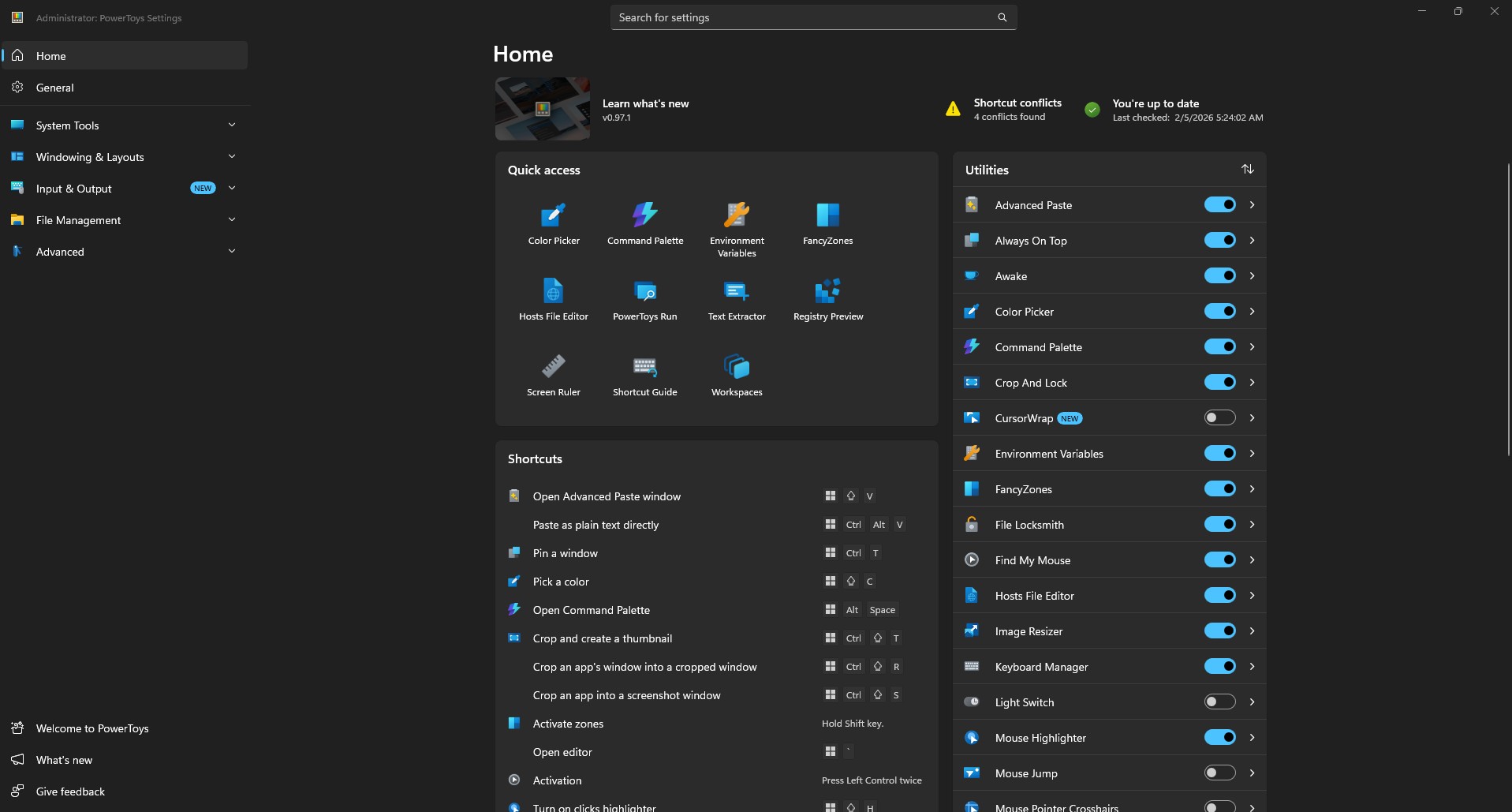
If you use Windows every day, you've probably felt it: the OS is powerful, but a handful of small things slow you down more than they should.
That's where Microsoft PowerToys comes in.
PowerToys is a free, Microsoft-supported utility suite that adds practical, no-nonsense features to Windows. These aren't gimmicks - they're tools that shave seconds and friction off everyday tasks. Over time, that adds up.
If you work in design, development, strategy, or any role that lives inside a computer all day, PowerToys is absolutely worth installing.
What Is Windows PowerToys?
PowerToys is an open-source collection of utilities built by Microsoft and the Windows community. Think of it as "advanced user features" that never quite made it into the core OS.
The project has roots going back to Windows 95, when Microsoft first released a set of free utilities for power users who wanted to push the boundaries of what the operating system could do. After a long hiatus through Vista, Windows 7, and Windows 8, PowerToys returned in 2019 as an open-source project - and it's been actively developed ever since.
As of early 2025, the suite includes over 25 utilities. It runs quietly in the background and integrates directly into Windows Explorer, keyboard shortcuts, and window management.
Once installed, it feels less like an app and more like Windows finally grew up.
How to Install PowerToys
Installation is straightforward. You have three options:
- Microsoft Store - Search for "PowerToys" and click Install
- GitHub - Download the latest release from the PowerToys repository
- Windows Package Manager - Run
winget install --id Microsoft.PowerToysfrom the command line
Once installed, most features are enabled by default. You can toggle individual tools on or off from the PowerToys dashboard.
The PowerToys Tools I Use the Most
PowerToys includes a lot of utilities. These are the ones that consistently earn their keep.
Image Resizer
Image Resizer lets you right-click any image and resize it instantly. No Photoshop. No export dialogs. No guesswork.
You can create presets for common use cases: web images, presentations, print, social media, native camera resolutions. Once configured, resizing becomes a one-second operation.
For designers and content creators, this alone justifies installing PowerToys.
FancyZones
FancyZones is a window manager that lets you define custom window layouts and snap apps exactly where you want them.
As WindowsForum notes, FancyZones "solves a perennial frustration: snapping and positioning windows precisely and efficiently." Its flexibility outpaces native Windows Snap Assist, with support for custom templates, multiple workspaces, and hotkeys.
This is especially useful if you use ultrawide or large monitors, juggle design tools with browsers and docs, or hate constantly resizing windows. Press Win + Shift + ` to open the Zone Editor, then drag windows into your defined zones while holding Shift.
PowerRename
PowerRename brings advanced batch renaming directly into File Explorer. Right-click selected files, choose "Rename with PowerRename," and you can replace text across dozens of files, add prefixes or suffixes, use regular expressions, and preview changes before committing.
If you deal with photos, assets, exports, or client files, this is a lifesaver. The utility is based on Chris Davis's SmartRename, and it's been refined over years of community contributions.
Peek
Peek lets you preview files with a single shortcut: Ctrl + Space.
Images, PDFs, text files, and more open instantly in a lightweight preview window. No app switching. No clutter.
As PCWorld observes, it functions like macOS Quick Look - something Windows users have wanted for years.
Keyboard Manager
Keyboard Manager allows you to remap keys and shortcuts globally.
This is perfect if you switch between operating systems, have a broken or inconvenient key, or want custom shortcuts for repetitive actions. Changes remain active as long as PowerToys runs in the background.
Tools You Might Have Overlooked
Beyond the essentials, PowerToys includes several utilities that don't get as much attention but are genuinely useful.
Color Picker
Color Picker is a system-wide eyedropper tool activated with Win + Shift + C. Click anywhere on screen to grab the exact color value in HEX, RGB, HSL, CMYK, or other formats. The color is copied to your clipboard automatically.
As PCTips notes, this is essential for anyone working with graphics, web design, or content creation. The utility also maintains a history of previously picked colors.
Text Extractor
Text Extractor uses OCR (optical character recognition) to copy text from anywhere on your screen. Press Win + Shift + T, select an area, and the text is extracted - whether from an image, video, screenshot, or locked PDF.
This is one of those tools you don't think you need until you do.
File Locksmith
Ever tried to delete or move a file and received the dreaded "file is in use" error?
File Locksmith shows you exactly which process is locking the file. Right-click any file in Explorer, select "What's using this file?" and you'll see a list of processes. You can then close those processes directly from the utility.
As How-To Geek explains, this eliminates the frustrating guesswork of figuring out why you can't modify a file.
Advanced Paste
Advanced Paste (Win + Shift + V) goes beyond simple clipboard management. You can paste text as plain text, Markdown, or JSON. There's also a clipboard history that shows everything you've copied.
If you have an OpenAI API key, you can enable AI-powered paste transformations - summarizing text, translating between languages, or reformatting content on the fly. Imaginet provides examples of using AI paste to rewrite text in specific styles or generate code from descriptions.
Always On Top
Need a window to stay visible no matter what? Press Win + Ctrl + T to pin it on top of everything else. The window gets a blue border to indicate it's pinned.
Simple, but surprisingly useful for reference windows, timers, or video calls.
PowerToys Awake
Awake keeps your computer from sleeping during long tasks - downloads, installations, renders - without touching your power settings.
You can set it to stay awake indefinitely or on a timer. A tray icon shows the current mode and time remaining.
Find My Mouse
Lost your cursor on a large display or multi-monitor setup? Double-tap Ctrl and a spotlight appears around your mouse position.
TechRepublic calls this especially handy for presentations on large displays when you want to draw attention to a specific area.
Mouse Without Borders
This utility lets you control up to four computers with a single mouse and keyboard, share clipboards between machines, and transfer files up to 100MB.
As Microsoft's documentation explains, it's essentially a software KVM switch. All machines need to be on the same network and running Windows. Setup requires generating a security key on one machine and entering it on the others.
For anyone with multiple workstations or a laptop-desktop setup, this eliminates the need for extra hardware.
PowerToys Run
PowerToys Run (Alt + Space) is a quick launcher that searches and opens applications, files, and system tools instantly. It's modular and supports community plugins for extended functionality.
If you've used Spotlight on macOS, this will feel familiar. Many users find it more reliable than Windows Search for actually launching apps.
Microsoft has announced that PowerToys Run is getting a major refresh in 2025, with a revamped UI and improved extensibility support. The new version is being called "Command Palette" and will serve as PowerToys Run's successor.
Workspaces
Workspaces lets you launch multiple applications into preset window configurations with a single click.
Set up your development environment - VS Code on the left, browser on the right, terminal at the bottom - and save it as a workspace. Next time, launch everything in position with one shortcut.
Screen Ruler
Activated with Win + Shift + M, Screen Ruler lets you measure pixels on screen using edge detection. Useful for designers checking spacing and alignment without opening a separate tool.
Shortcut Guide
Press Win + Shift + / (or hold the Windows key) to see a visual overlay of available keyboard shortcuts for the current desktop state.
Helpful for discovering shortcuts you didn't know existed.
File Explorer Add-ons
These add-ons extend File Explorer's Preview Pane to support additional file types: SVG images, Markdown documents, source code with syntax highlighting, PDFs, and more.
Hosts File Editor
A simple interface for editing your Windows hosts file - useful for local development, blocking sites, or DNS testing - without manually navigating to system folders.
Quick Accent
Quick Accent provides an alternative way to type accented characters when your keyboard doesn't support them. Hold a key and a popup shows available accented variations.
Why PowerToys Fits How I Work
Good tools don't shout. They reduce friction.
PowerToys does exactly that. It respects your time, stays out of your way, and improves workflows instead of reinventing them. It's modular - you enable only what you need - and it's built by developers who actually use their computers to get work done.
That aligns with how I think about the tools I recommend to clients: sustainable, practical, and focused on making real tasks easier.
Should You Install It?
Yes.
PowerToys is free, lightweight, actively maintained, and easy to uninstall if you change your mind. Most people who install it never go back.
You can download it from the Microsoft Store or the GitHub releases page.
Final Thought
Windows is already powerful. PowerToys makes it intentional.
If you care about efficiency, clarity, and tools that quietly make you better at your work, PowerToys belongs on your machine.
Sources referenced in this article:
- Microsoft PowerToys Documentation - Official Microsoft Learn documentation
- TechRepublic: Microsoft PowerToys Cheat Sheet - Comprehensive feature overview
- PCWorld: 9 Useful Windows PowerToys Features - Feature spotlight by Jon Martindale
- Computerworld: Windows PowerToys Productivity Toolbox - Category breakdown and use cases
- How-To Geek: All Microsoft's PowerToys Explained - Detailed utility explanations
- WindowsForum: Ultimate Guide to PowerToys in 2025 - Feature analysis and comparisons
- PCTips: The Ultimate Guide to PowerToys - Practical usage examples
- Imaginet: Increasing Productivity with PowerToys - AI paste and advanced features
- PowerToys GitHub Repository - Source code and release notes