
If you’ve ever uploaded a photo straight from your phone into WordPress, you’re not alone.
That 6MB image looks harmless. WordPress even creates multiple sizes automatically. Everything seems fine.
But here’s what’s actually happening behind the scenes:
That full-size original file still lives on your server.
And if it’s oversized, every upload adds weight to your hosting account, your backups, and your long-term site performance.
For small businesses, nonprofits, and community organizations trying to build sustainable digital spaces, that adds up.
So here’s the simple tool I use to prevent that problem before it starts.
The Quiet Utility That Just Works
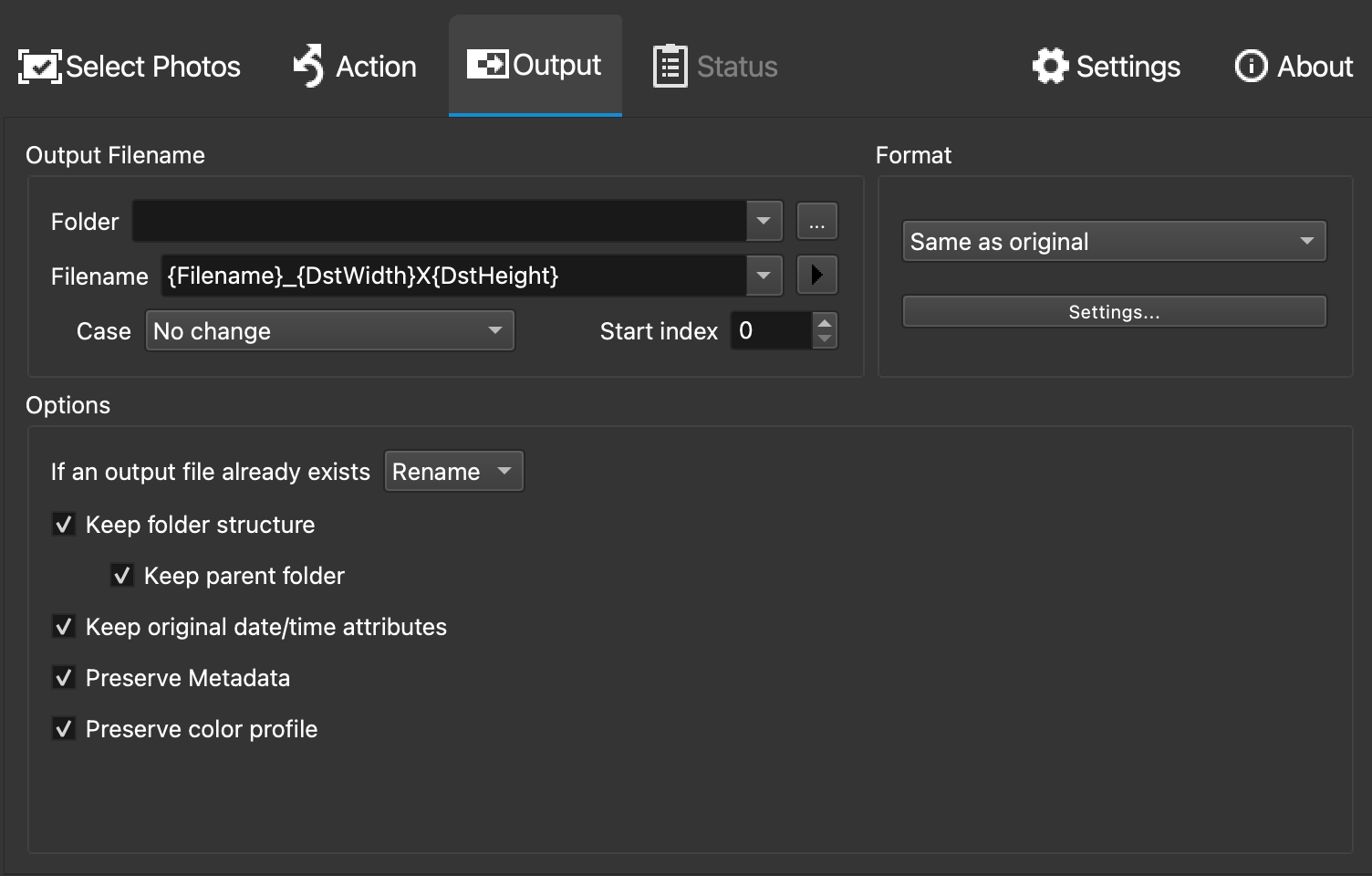
On my Mac, I use XnResize.
It’s free.
It’s lightweight.
It batch processes images in seconds.
And it doesn’t try to be a full design suite.
It does one job well: resizing images intentionally before they ever touch WordPress.
I typically use:
- Mode: Fit
- Max width: 1600px
- Keep ratio: On
- Resample: Lanczos
- JPEG quality: 80
That’s it.
No drama. No overthinking.
A Real Example From Bloomington
Recently, I photographed the launch event for Amplify Bloomington.
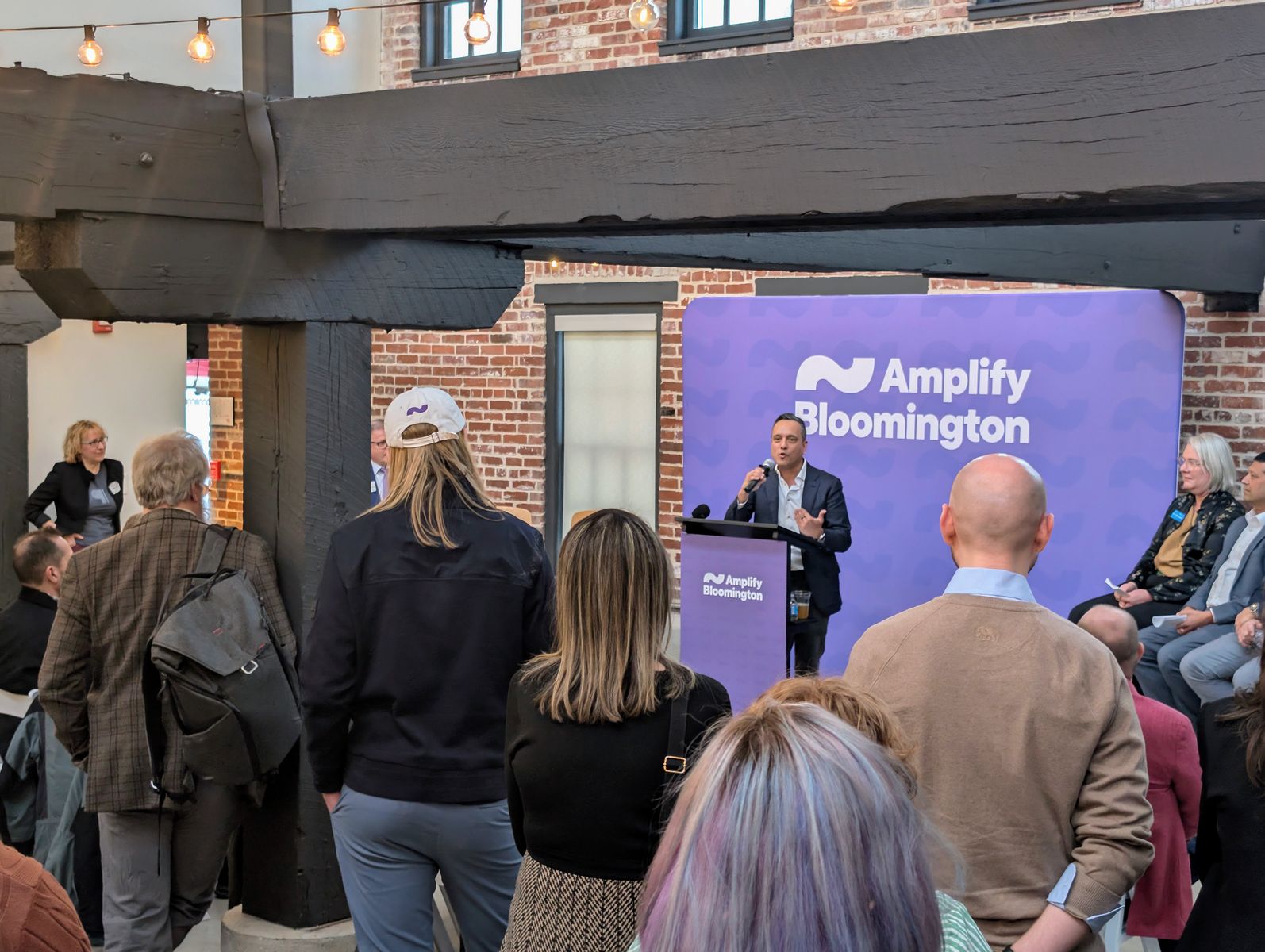
Image URL:
https://davidmartindesign.com/wp-content/uploads/amplify-bloomington-logo-green.png

This was a great community moment. Brick textures, string lights, signage, faces, layered depth. A perfect real-world test for image optimization.
The original photo from my Pixel was:
- 7751 × 5836 pixels
- 45.2 megapixels
- 5.8MB file size
Beautiful detail. Completely unnecessary for a website.
Here’s what the file information panel looked like before resizing:
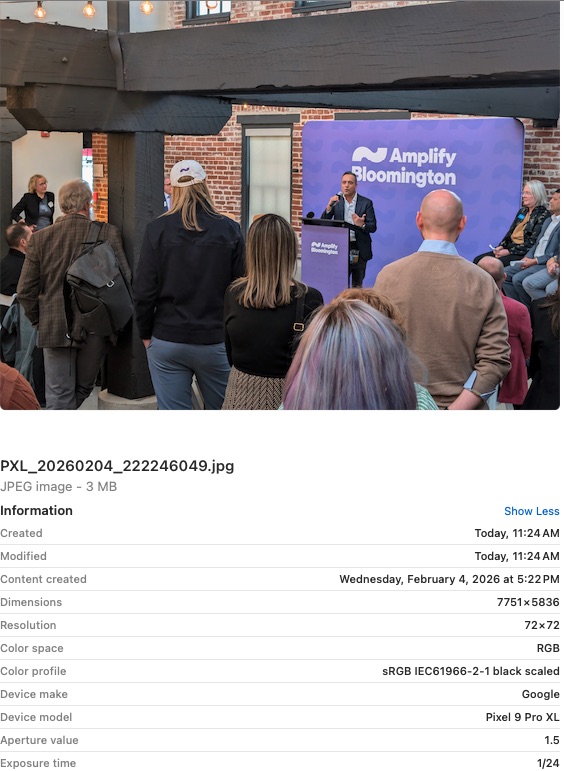
Notice that 7751px width. No modern WordPress layout needs that much resolution. Even large hero sections rarely exceed 1920 to 2560 pixels.
Uploading that original image would mean:
- 5.8MB stored permanently
- Larger backups
- Slower media library performance
- Increased hosting footprint
And it adds up over time.
How I Optimized It
I ran the image through XnResize using my standard preset:
- Max width: 1600px
- Mode: Fit
- Lanczos resampling
- JPEG quality: 80
- Metadata removed
- Color profile preserved
The resulting image is approximately:
- 1600 × 1205 pixels
- Around 400KB
Here’s the optimized version:
Image URL:
https://davidmartindesign.com/wp-content/uploads/amplify-bloomington-event-optimized-1600px.jpg
Visually, it still looks crisp. The brick texture holds up. The lighting feels natural. The signage is clear.
Technically, the file size dropped by more than 90 percent.
That’s a meaningful reduction.
Why I Don’t Just Let WordPress Handle It
WordPress generates multiple image sizes automatically, which is great.
But it does not shrink the original upload.
If you upload a 7751px image, that file stays exactly that size on your server.
Resizing before upload keeps your infrastructure lighter from the beginning.
It’s a small habit that prevents long-term bloat.
A Simple Workflow You Can Use
Here’s what this looks like in practice:
- Export or gather your original images
- Drag them into XnResize
- Apply your preset
- Save to an “optimized” folder
- Upload to WordPress
That extra step takes less than a minute.
But it makes your site faster, leaner, and easier to maintain.
A Note About Resolution and DPI
You may have noticed the original file lists 72 DPI.
For web use, DPI doesn’t matter.
Pixel dimensions matter.
A 7751px-wide image will be huge online regardless of DPI settings. What determines performance is width and file size, not print resolution metadata.
Digital Sustainability in Small Decisions
When we reduce a 6MB image to under 500KB without losing visible quality, we’re not just improving performance.
We’re:
- Reducing bandwidth usage
- Shrinking backups
- Lowering storage overhead
- Making pages load faster for real people
For nonprofits, small businesses, and community organizations, those efficiencies matter.
Image resizing isn’t glamorous.
But it’s one of the simplest ways to build digital spaces that are thoughtful instead of wasteful.
Final Thoughts
You don’t need heavy design software.
You don’t need expensive subscriptions.
You just need a consistent, intentional workflow.
Tools like XnResize make that easy.
If you’re not sure what dimensions your theme actually needs, or you’d like help building a lightweight media workflow for your site, I’m always happy to talk it through.
Small refinements compound over time.
And that’s where good websites become sustainable ones. 😊
Leave a Reply